Your page for creators
4 min read
Your page is the public page businesses see when they open your profile — your portfolio and your front window in one place. You set it up in Settings → Your page. Each part saves on its own, so you can do one today and the rest later.
What to put in it, and how it compares with a media kit: your free UGC portfolio.
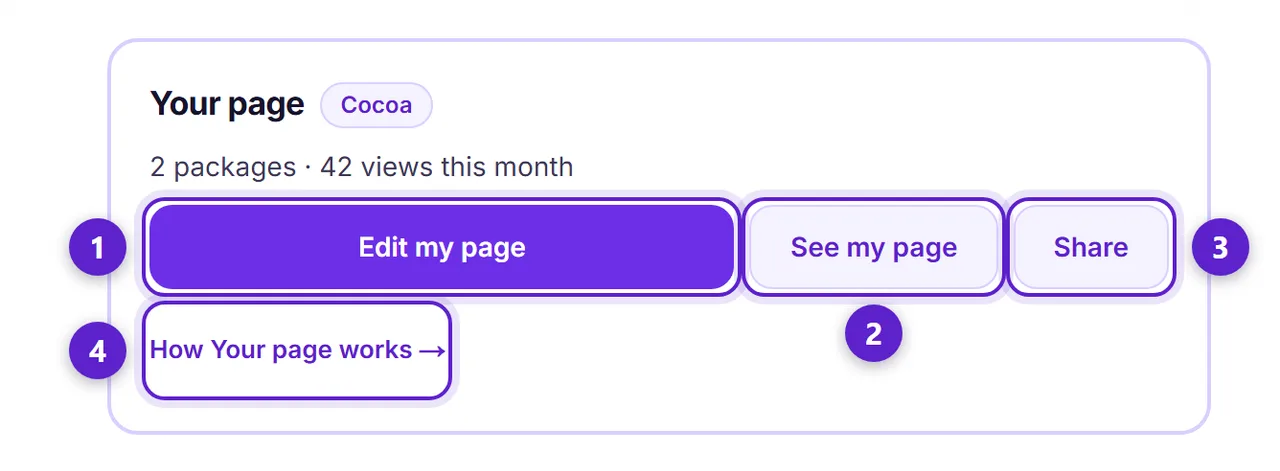
- 1. Set up your page (Edit my page once you have a package) opens Settings → Your page.
- 2. See my page opens your public page, the way a visitor sees it.
- 3. Share opens your short link, story card and QR code. It appears once your page has a package.
- 4. How Your page works brings you back to this guide.
The parts of Your page
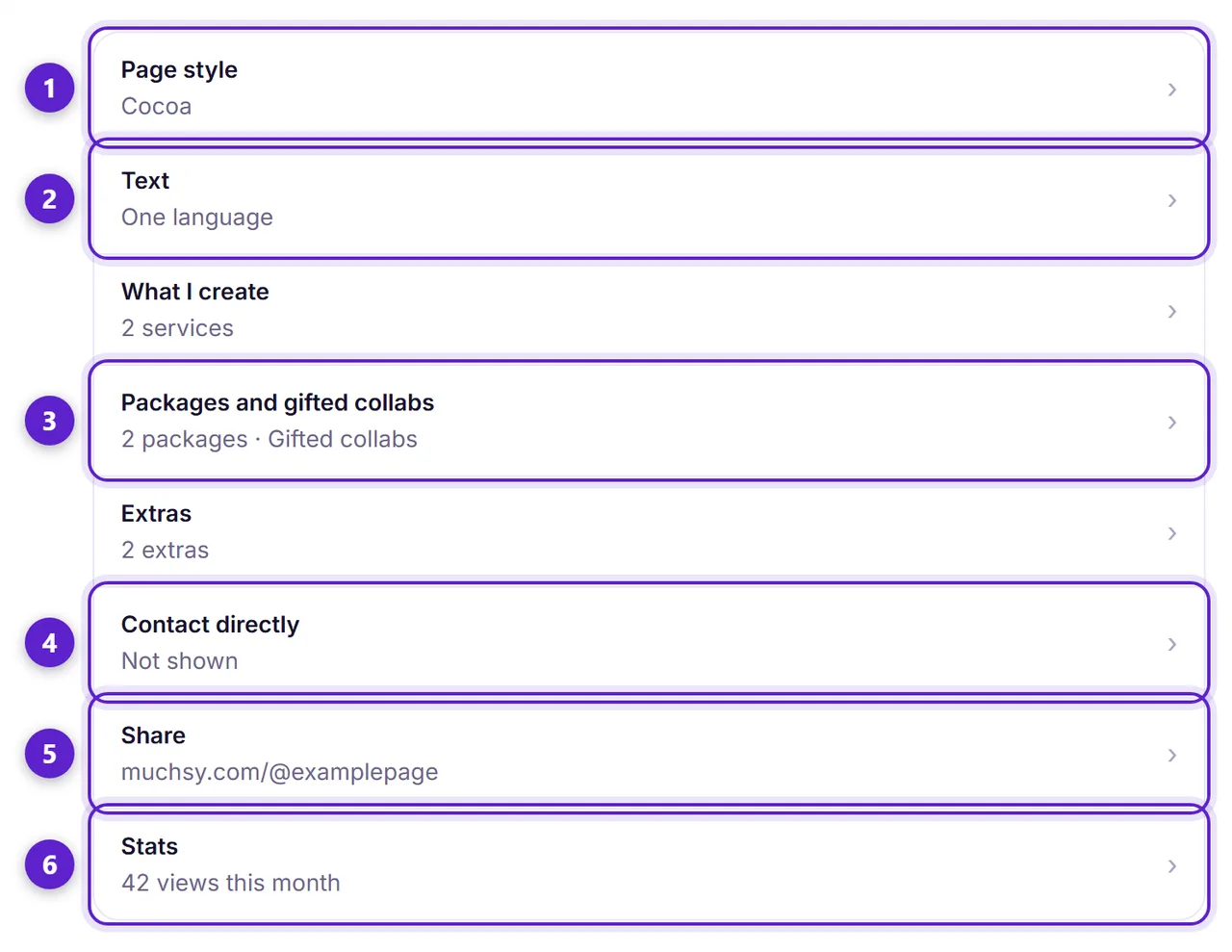
- 1. Page style: Classic, or one of three styles — Cocoa, Coastal and Pop. A style changes your page only. Muchsy's own menus and your card in the creator directory always look the same.
- 2. Text: your headline, About, Best for, gifted collabs and an availability line. Write in English, French or both. Pick your main language; visitors who read the other one see your text in their language when you've written it.
- 3. Packages and gifted collabs: your own offers, at your own prices (more below).
- 4. Contact directly: an optional button for businesses who would rather reach you outside Muchsy.
- 5. Share: your short link, story card and QR code.
- 6. Stats: private counts of views and requests.
What I create
Up to 4 short blocks that say what you make, in your own words — for example Short UGC videos. (UGC means videos and photos a business posts on its own page and in its ads.)
Packages and extras
Packages are your own offers with your own prices: up to 3. Each has a name, a price and currency, a one-line summary, what's included and a delivery time. You can also state the usage rights — where and for how long the business may use the content — and whether raw files (the original, unedited clips) are included.
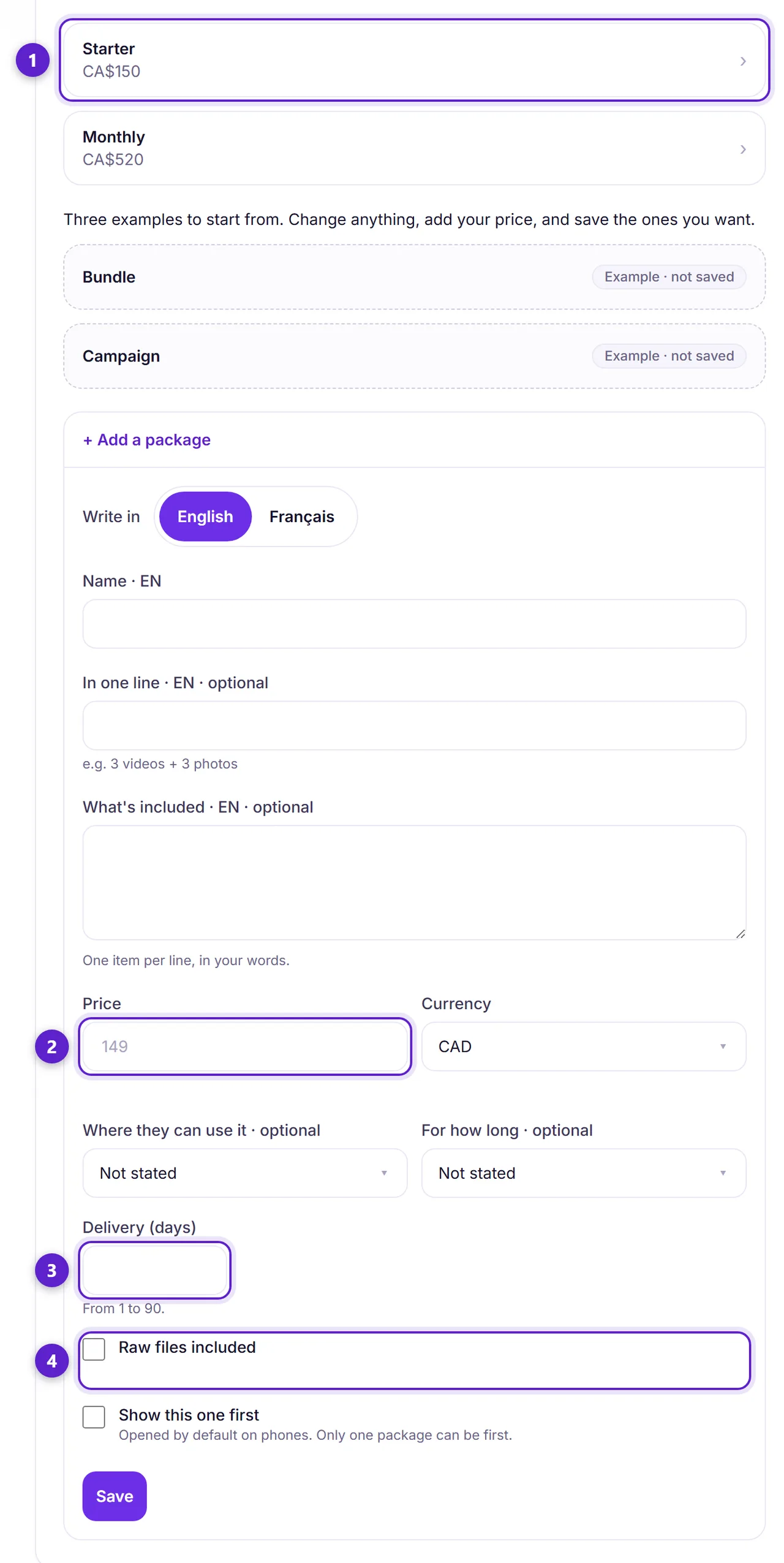
- 1. A saved package. Open it to change it, move it or delete it.
- 2. The price, in the currency you choose. 0 is fine.
- 3. Delivery time in days, from 1 to 90. It is filled in for the business when they book you.
- 4. Raw files included: tick it when the package comes with the original clips.
Extras are add-ons a business can tick when booking, such as 48-hour delivery: up to 6, priced in the same currency as your packages.
The business pays you directly — by bank transfer, invoice or however you agree. Muchsy takes no commission and holds no money.
Gifted collabs and availability
In Text, tick I'm open to gifted collabs and say what one looks like: a product, a meal or a visit in exchange for content, with no fee. Your page then shows a Gifted collab card beside your packages.
Also in Text: an availability line such as Booking for November, with an optional end date. After that day the line disappears by itself.
Contact directly
Turn it on to show a Contact directly button with a public email (not your login email) and a booking link. Your email is never written into the page: a visitor presses Show email to see it.
Your page, as visitors see it
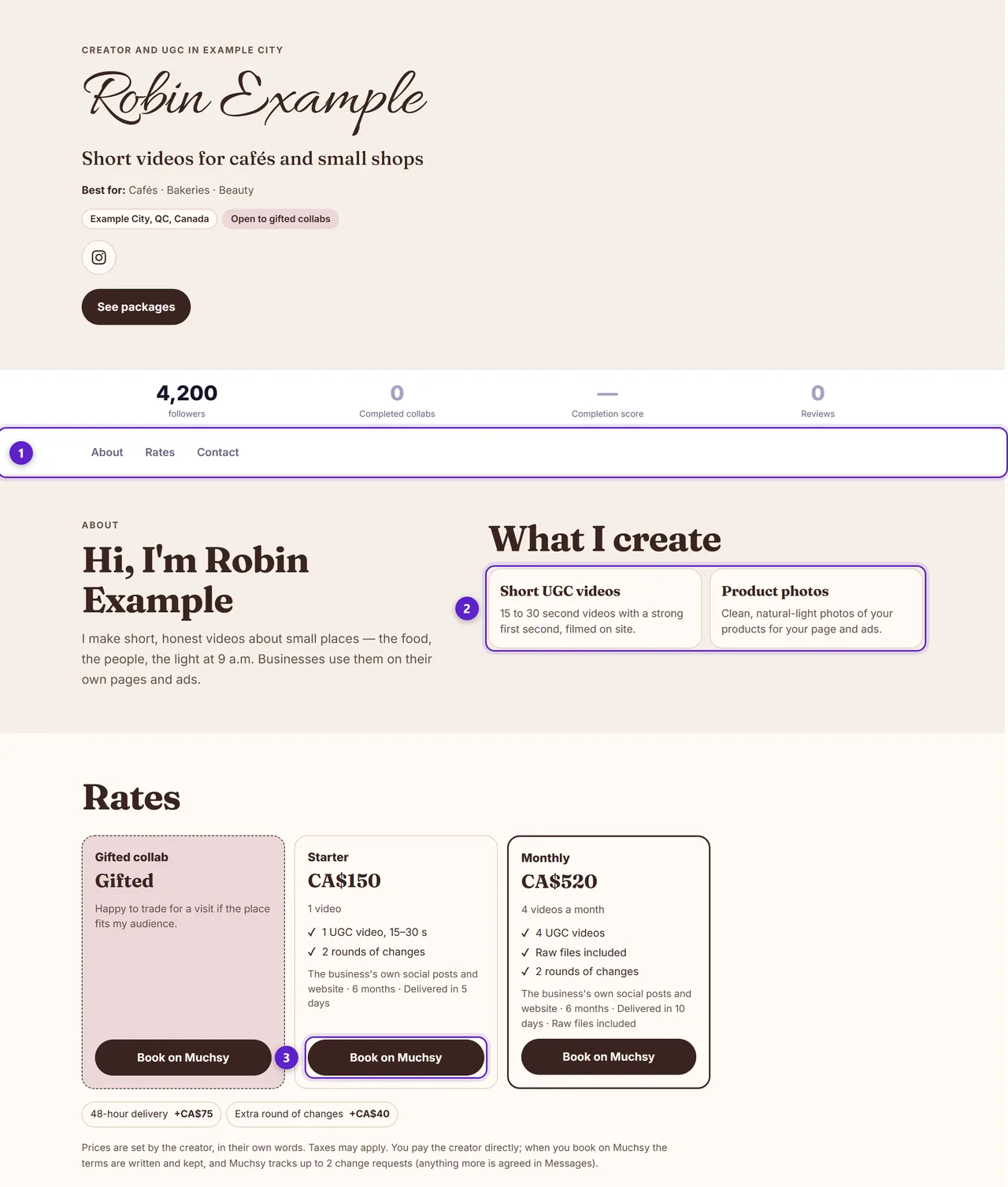
- 1. The menu follows the section being read, and jumps to any other.
- 2. What I create, in your words.
- 3. Book on Muchsy, on each package: a business presses it to book you.
Collabs you complete on Muchsy, with the business's review, appear on your page as Delivered on Muchsy.
Share your page
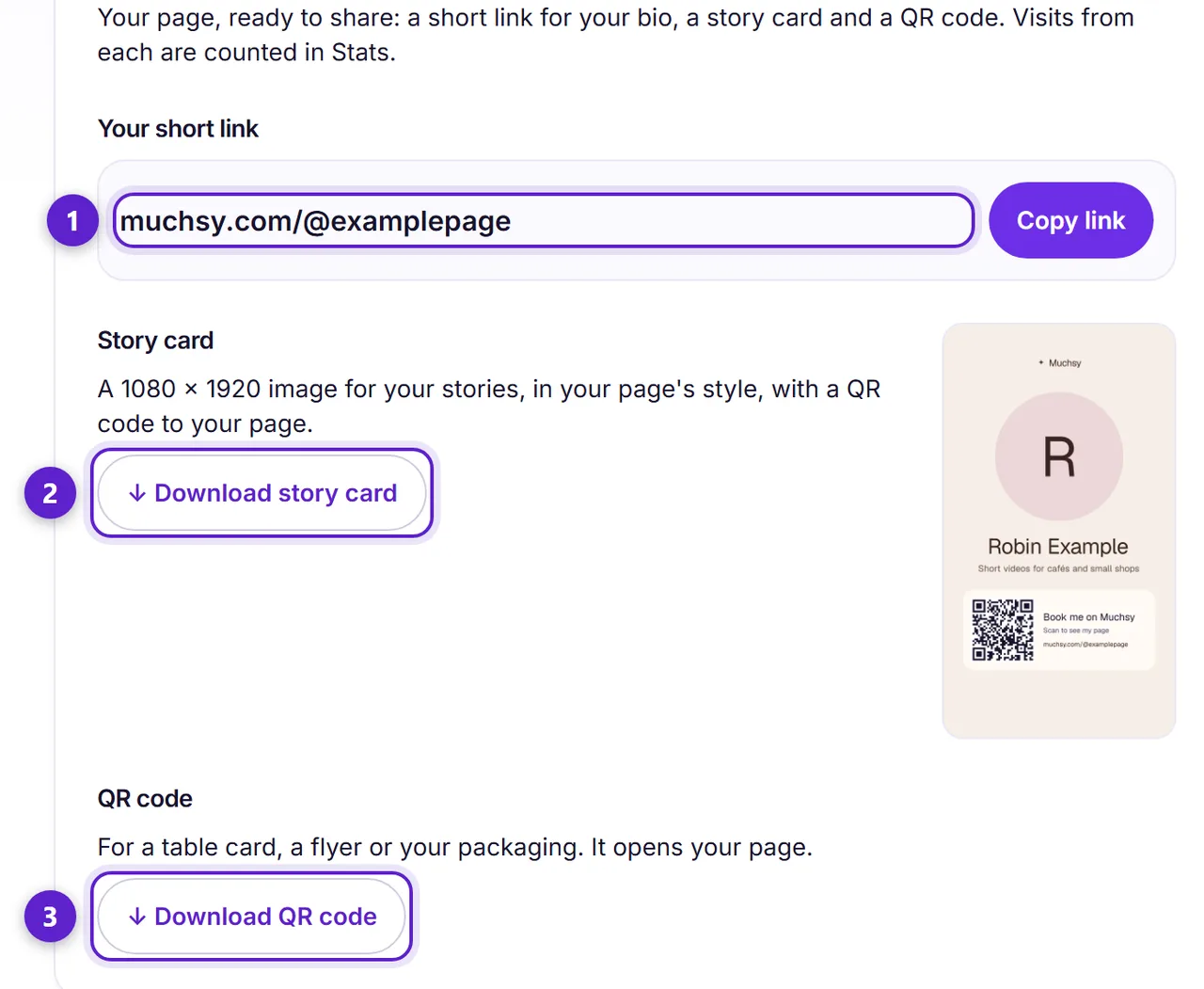
- 1. Your short link, muchsy.com/@yourname — made for your bio. Copy it in one tap.
- 2. Story card: a 1080 × 1920 picture in your page's style, with a QR code to your page.
- 3. QR code: for a table card, a flyer or your packaging. It opens your page.
Stats
Stats shows counts only, for this month and last month: page views, collab requests, how often your contact details were shown, story and QR scans, and where visitors came from. Muchsy never shows who viewed your page, and your own visits are never counted.
Hiding your page
To take your page out of view for a while, go to Settings → Visibility. While it is hidden nobody else can open it, and the Your page card on your dashboard says so. Hide your profile explains what changes and what doesn't.
How does a business book you? Book a creator on Muchsy shows their side.
Ready to try it?
Free to join, no card, and nothing here charges you later.
Something not matching? If a screen here looks different from what you see, tell us — a guide that has drifted is our problem, not yours. Contact