Create a business account and post your first offer
6 min read
This walks through every screen between having no account and having an offer creators can apply to. It takes about ten minutes, and nothing on the way asks for a card — Muchsy is free, and no money ever moves through the platform.
The pictures below are real screens with the important fields circled. The numbers match the numbered steps under each one.
1. Create the account
Go to Sign up. There are two cards on the right — Business, and Creator or member — and the choice matters: it can only be changed later while the account is completely empty, so pick the one that describes you now.
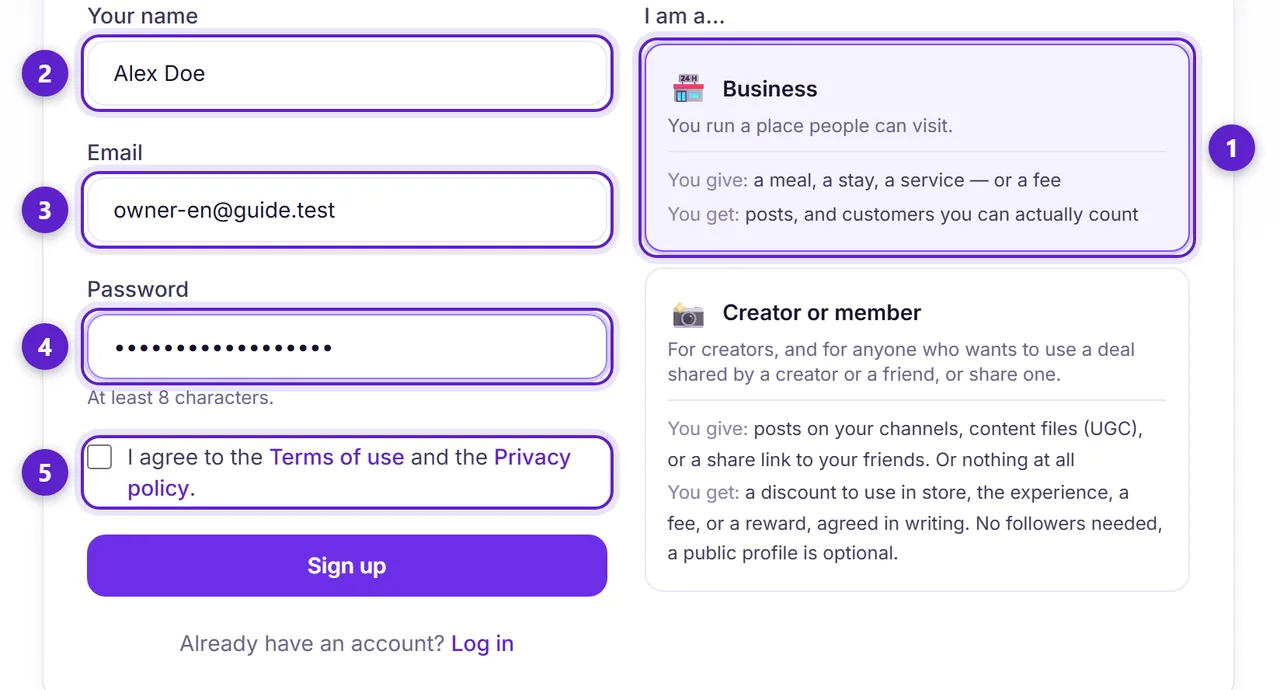
- 1. Choose Business — you run a place people can visit. (Creator or member is for someone who posts to an audience, makes content files for businesses, or just shares a deal with friends.)
- 2. Your own name, not the business name. The business gets its own name on the next screen, and this one is who you are when you message a creator.
- 3. An address you actually read. Every application, message and reminder arrives here.
- 4. At least 8 characters.
- 5. Tick to accept the terms and privacy policy. The form will not submit without it.
2. Confirm your email
Muchsy emails a 6-digit code straight away, and the screen changes to ask for it — the code is in the subject line, so you can read it from the inbox list without opening anything. Type it in and you are signed in. You only do this once. The same email also has a link, if you would rather open that or you are reading your mail on another device.
If the email does not arrive, check the spam folder first, then use the resend button on that same confirmation screen — the new code replaces the old one. If you typed the wrong address, the screen shows which address it used and offers a way back to the form. And if you have already navigated away, just log in: the login page asks for the code too.
3. Describe the business
This is the profile creators read before deciding whether to apply, and it is also your public page. You can change any of it later in Settings.
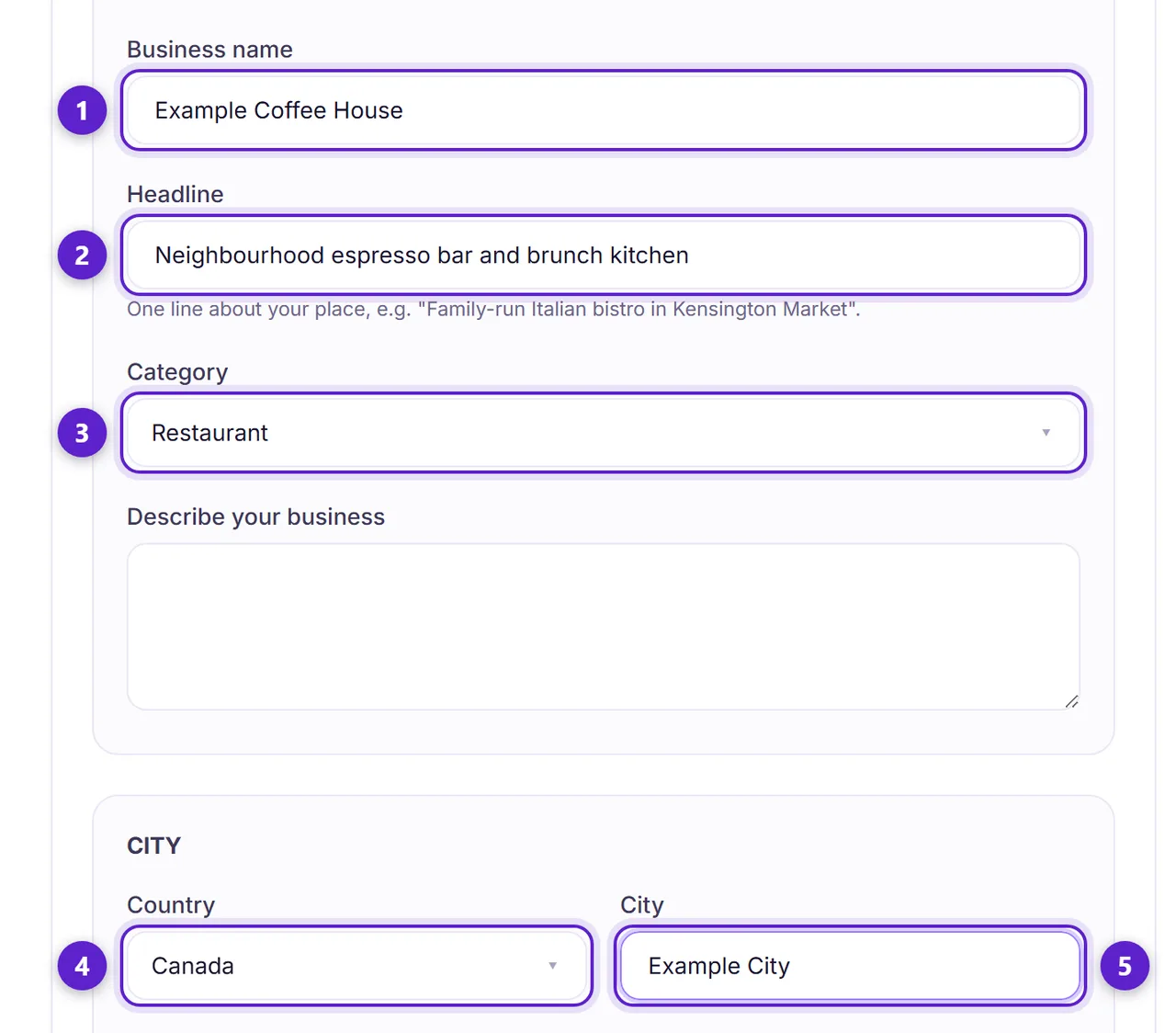
- 1. The name customers know you by. It becomes your public page address, so renaming later changes that link.
- 2. One line about the place. This is the sentence that appears under your name everywhere on the site.
- 3. Your category — it is how creators filter the directory.
- 4. Country.
- 5. City, typed freely. Muchsy works anywhere, so there is no list to pick from and no country is treated as the default.
4. Find your way around
After the profile you land on the dashboard. It opens with what is waiting on you rather than with a menu — when an application or a proof of post needs your attention, it says so here in a sentence, and the block disappears entirely when there is nothing outstanding.
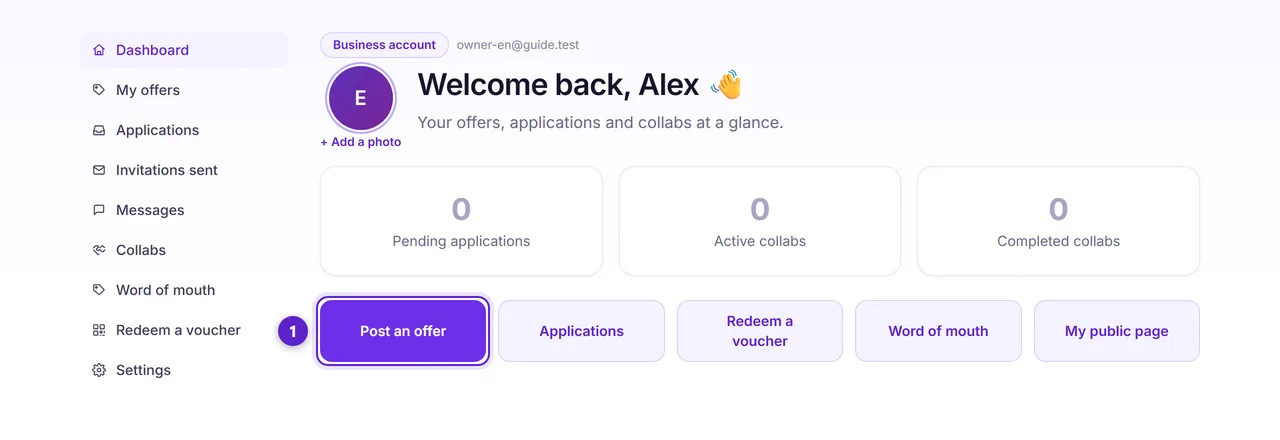
- 1. Post an offer. Everything else on this bar — applications, redeeming a voucher, your public page — becomes useful once an offer is live.
5. Write the offer
An offer is the deal, in writing: what a creator gets, and what they owe you in return. Both halves are frozen onto the agreement the moment a creator is accepted, so editing the offer afterwards never rewrites a deal that is already running.
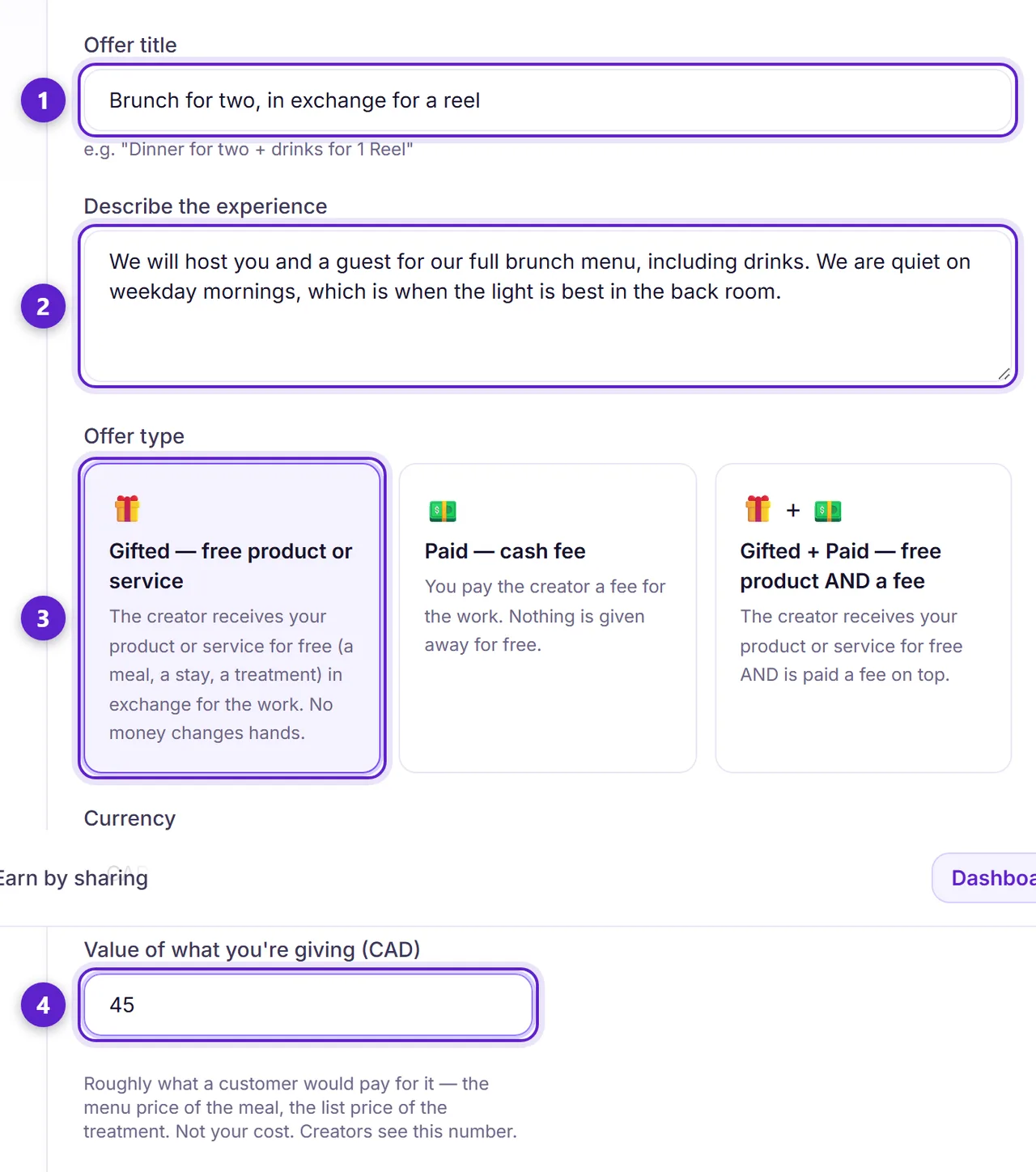
- 1. A plain title that names the trade. "Brunch for two, in exchange for a reel" tells a creator more than "Collab opportunity".
- 2. What the visit is actually like, and anything they should know — quiet hours, where the good light is, whether a guest can come.
- 3. How they are paid. Gifted means they receive the product or service free and no money changes hands; Paid is a cash fee; Gifted + Paid is both. Cash always moves directly between the two of you — Muchsy never touches it.
- 4. What the perk is worth at your normal prices, not what it costs you. Creators see this figure, and it is what makes a gifted offer comparable to a paid one.
The second half of the form is the part people skip and later wish they had not. It is what you can point at if a collab goes wrong.
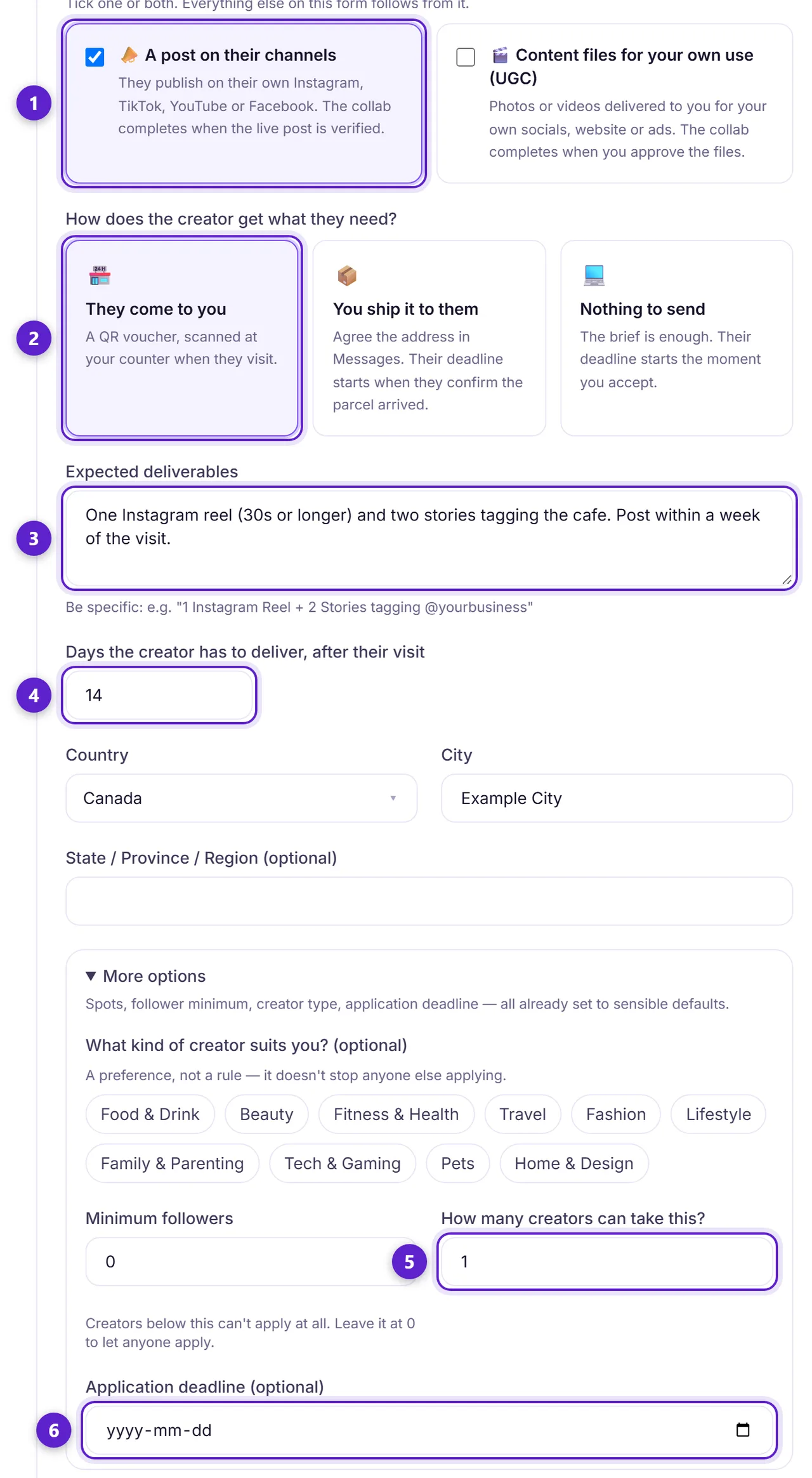
- 1. What you want: a post on the creator's channels, content files for your own use (UGC), or both. Tick files and the form asks where and for how long you may use them; untick the post and the follower minimum disappears, because it no longer means anything.
- 2. How the creator gets what they need: they come to you (a QR voucher scanned at your counter), you ship it (their clock starts when they confirm the parcel), or nothing to send (their clock starts when you accept). Only the first has a voucher.
- 3. Exactly what they owe you. Count the posts and name the format — "one reel and two stories tagging us" is enforceable; "some content" is not.
- 4. How many days after the visit they have to post. The collab completes when the post is verified live, and this is the clock it runs against.
- 5. How many creators can take this offer. It closes itself once the spots are filled.
- 6. An optional last day to apply. Leave it empty and the offer stays open until you close it.
Further down the same form there is an optional discount you can attach for the creator's followers. It is worth reading even if you skip it: it is what turns "they posted" into a count of customers who actually walked in, named creator by creator.
6. Publish, and what happens next
Publish offer puts it in front of creators immediately. Save as draft keeps it private until you are ready.
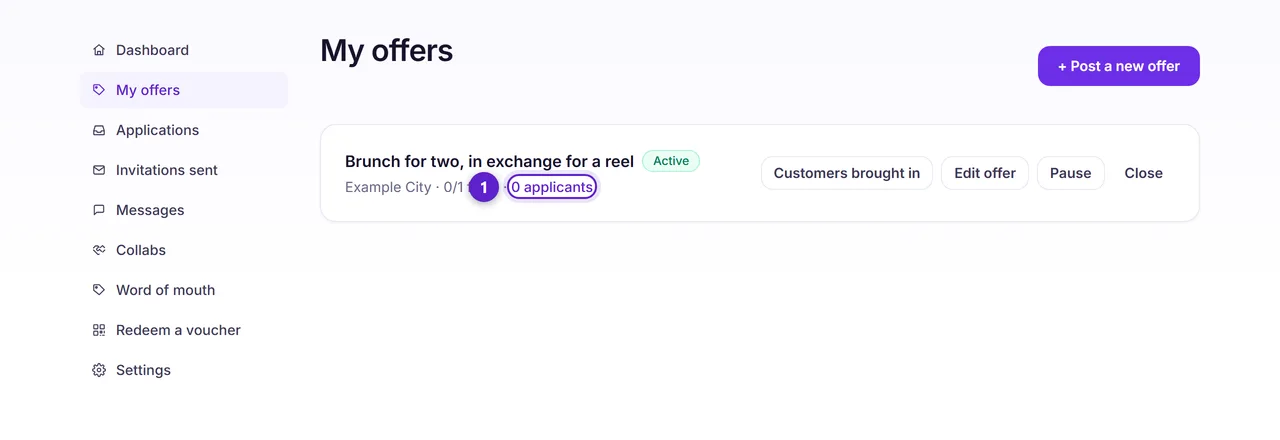
- 1. Applications land here. You will also get an email for each one, and the dashboard will say it is waiting on you.
From here a creator applies and you accept the ones you want. If your offer asks them to come to you, they get a voucher to redeem at your counter; if you ship it or the work is remote, there is no voucher. Accepting is what freezes the agreement — after that the deliverables, the usage rights and the deadline are fixed for that creator, whatever you later do to the offer.
You are not committed to anyone until you accept. An application is a request, and declining one costs you nothing and penalises nobody.
Ready to try it?
Free to join, no card, and nothing here charges you later.
Something not matching? If a screen here looks different from what you see, tell us — a guide that has drifted is our problem, not yours. Contact