Create a creator account and apply to your first offer
6 min read
Muchsy is free for creators and always will be — no fee, no cut, and no money passes through the platform. If an offer pays cash, it comes to you directly from the business.
The pictures below are real screens with the important fields circled. The numbers match the numbered steps under each one.
1. Create the account
The two cards are the two kinds of account. Pick Creator if you post to an audience or make content for businesses. (If you only want to share a friend's discount and earn a reward, you never need this page — the share-and-earn guide starts from the link itself.)
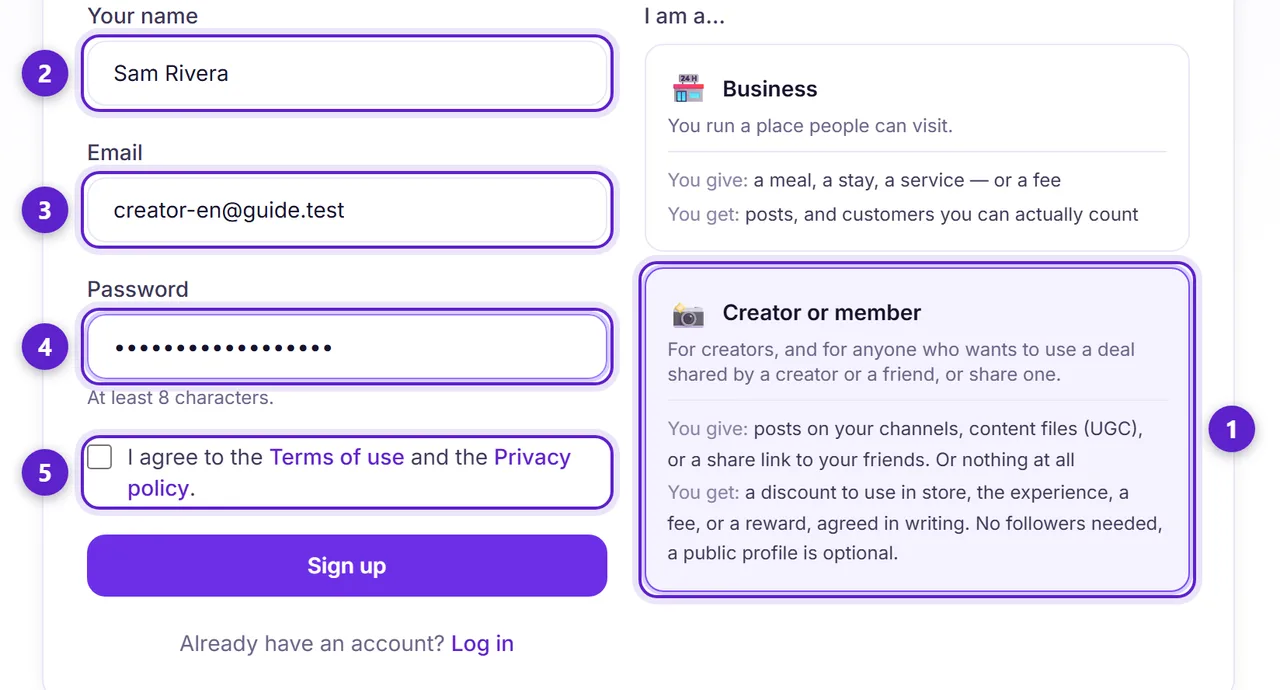
- 1. Choose Creator or member.
- 2. Your name. This is who a business sees when you message them.
- 3. An address you read — applications, replies and deadline reminders all arrive here.
- 4. At least 8 characters.
- 5. Accept the terms and privacy policy. The form will not submit without it.
Muchsy emails a 6-digit code — it is in the subject line, so you can read it straight from your inbox list. Type it into the screen you are already on and you are signed in. The same email carries a link, if you would rather open that. If nothing arrives, check spam, then use the resend button on the confirmation screen.
2. Build the profile a business will judge
This is the page a business opens before deciding whether to accept you. It is public, it is the thing your completion score eventually sits on, and it is worth ten minutes.
The form opens with a photo of you or your brand. Add one — it saves the moment you pick it, a logo or a product shot counts, and creators with a photo are listed first everywhere a business browses. Then the three fields below.
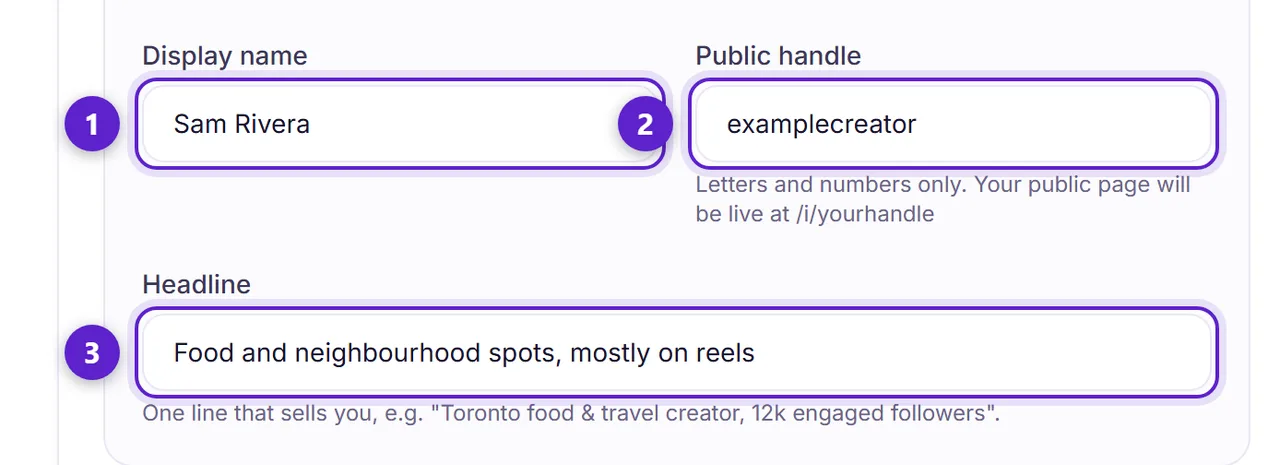
- 1. The name you want shown publicly.
- 2. Your handle — letters and numbers only. Your public page lives at /i/yourhandle, so this becomes your link.
- 3. One line that says what you make and where. "Neighbourhood food, mostly reels" beats "content creator". A longer About text can be added later from Settings.
Further down come your niches, the languages you work in, your city, and your accounts. Two of those are worth calling out.
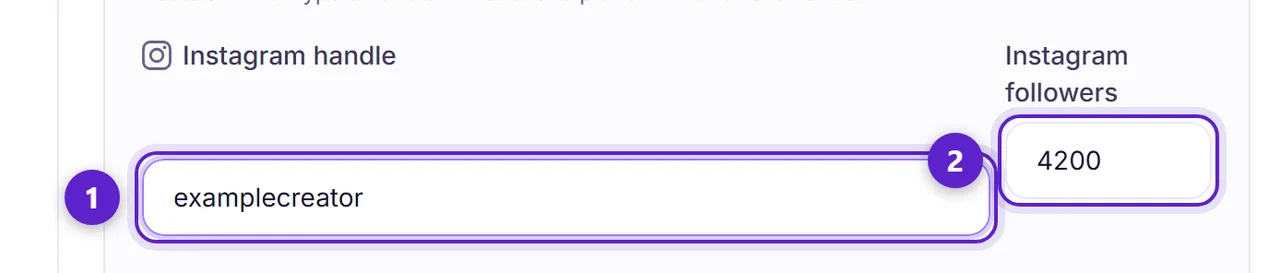
- 1. If you post to an audience, link at least one account — Instagram, TikTok, YouTube or Facebook. Any one of the four will do, and the form will not save without one. If you only make content files (UGC), you can leave them all empty and give a portfolio or website link instead.
- 2. A follower count, on a platform you linked. At least one real number is needed if you post, and a count with no handle beside it is refused — a business has to be able to go and look. It is self-declared: Muchsy does not connect to these platforms and does not verify it, so inflating it only gets you into collabs you will be judged on. If you only make content files, no count is asked for.
Your city matters more than it looks. Most offers are from a place someone has to physically visit, and businesses filter the directory by city.
3. Find an offer
Browse offers lists everything open, with filters for city, category and offer type. While Muchsy is new, some listings are showcase pages we built ourselves — those cards carry an Example tag, and the page you open says so at the top.
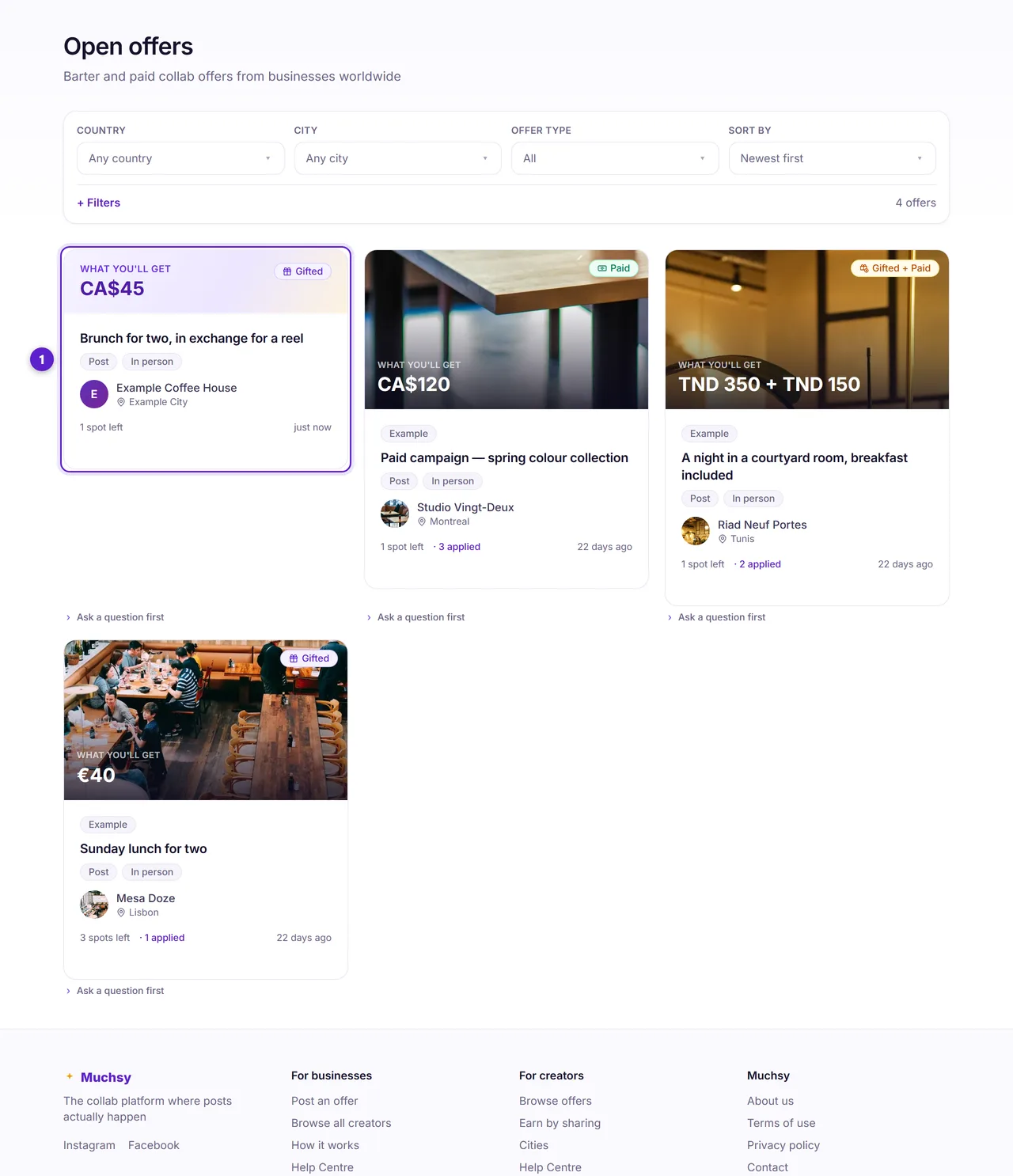
- 1. Each card shows the deal and where it is. Open one to read the full terms before you decide.
4. Read it properly, then apply
The offer page has three blocks worth reading in order: what you'll get (a cash figure, or what a gifted perk is worth at the business's normal prices), what you'll post — the exact deliverables you are agreeing to — and the requirements, including how many days you have to post after your visit.
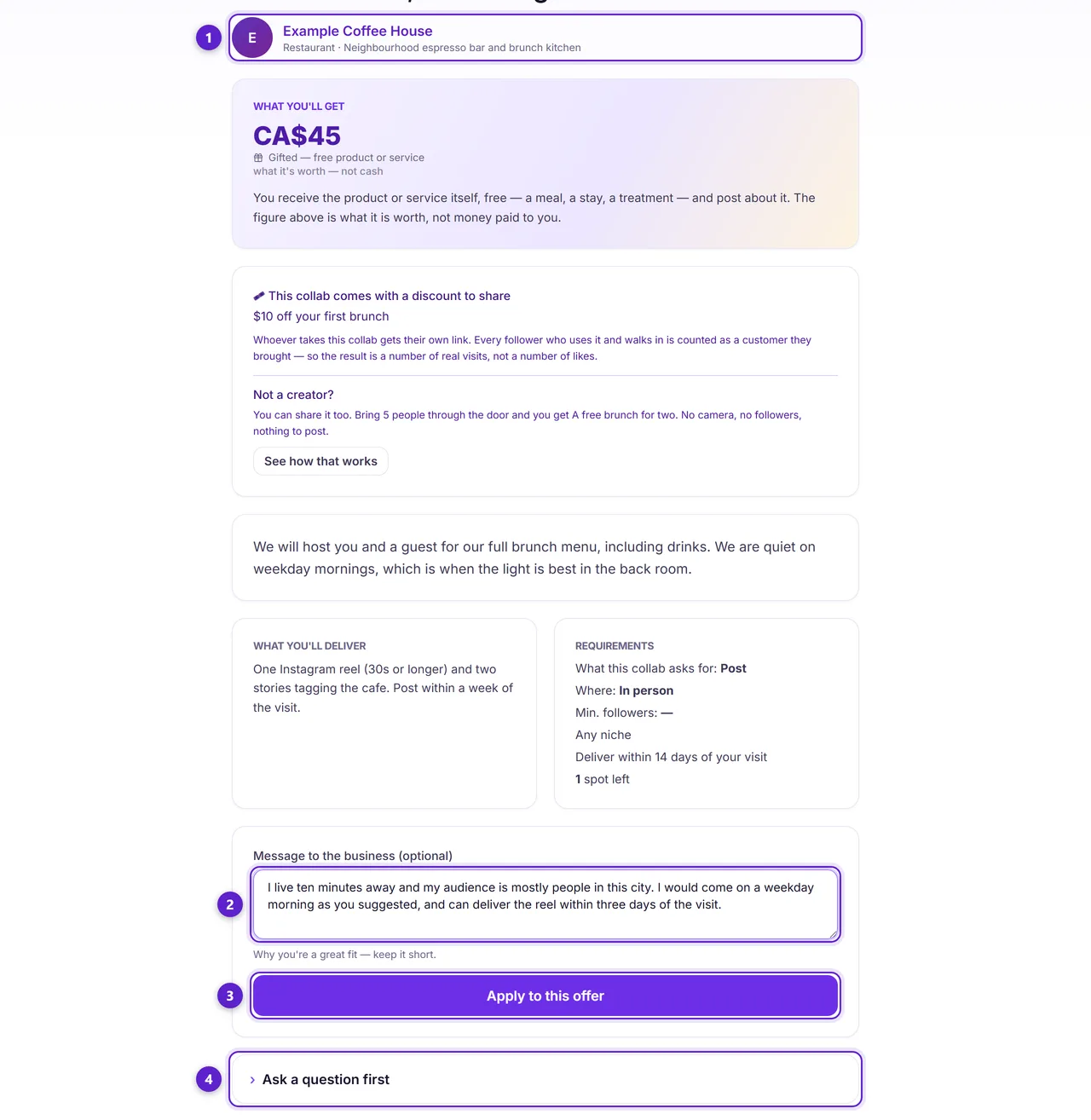
- 1. Open the business's page first. It shows their finished collabs and what other creators said about working with them — this is the check that goes in the direction people usually forget.
- 2. A short message. Optional, but it is the only thing separating you from every other applicant: say why you fit and when you would come.
- 3. Apply. Nothing is committed yet — this is a request, and the business chooses.
- 4. Not sure? Ask first. You can message a business without applying, so you never have to commit to an offer to ask the question that decides it.
If they accept, the terms you just read are frozen onto the agreement — the business editing the offer afterwards cannot change what you agreed to. If the offer is in person you get a voucher to show on your visit; if it is shipped or remote there is no voucher at all. Then you deliver — the live post link, the content files, or both — and the collab completes once the business has verified the post or approved the files.
Completing matters. Your public score is completed collabs against ones you flaked on, and it only appears once you have three outcomes — so the first three set the tone.
Ready to try it?
Free to join, no card, and nothing here charges you later.
Something not matching? If a screen here looks different from what you see, tell us — a guide that has drifted is our problem, not yours. Contact